Visual reminders for ADHD: seen, not just heard
Drifta is an iPhone task app for ADHD that gives every task its own time window.
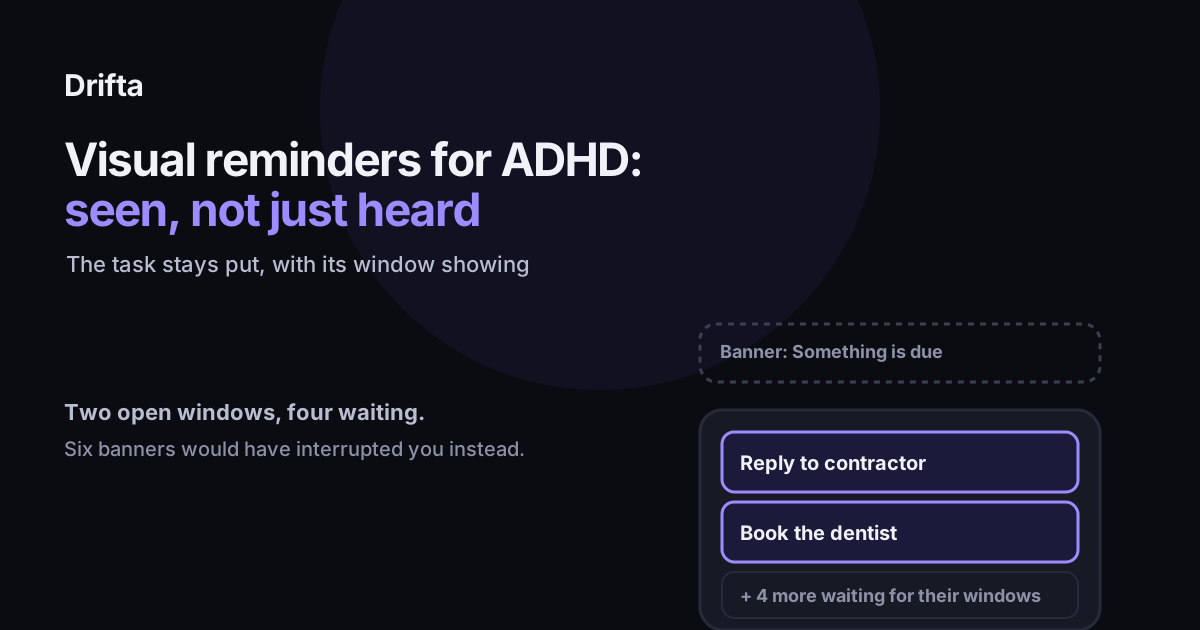
A visual reminder shows the task, its time window, and its deadline in a view you already look at, so the reminder is the task itself rather than a separate alert. A banner is an event that arrives once and sits on top of whatever you were doing. The ADD Resource Center says visual cues help people with ADHD retrieve information because they make it easier to remember important details.
A visual reminder shows the task, its time window, and its deadline in a view you already look at, so the reminder is the task itself rather than a separate alert. A notification banner is an event: it arrives once, sits on top of what you were doing, and leaves the task somewhere else. The ADD Resource Center says visual cues help people with ADHD retrieve and remember details because they give the brain something to see, not only something to hear.
The gap between the two matters because most reminders fail in the same way. The alert arrives, you dismiss it, and the task is no longer on anything you look at. This article explains what makes a reminder visual, compares it with a banner, works through a made-up afternoon, and ends with a setup you can test today.
What makes a reminder visual?
A reminder is visual when it lives in a view that stays put and shows the state of the task. The view is the thing you look at, and the task is the thing it shows. A banner is different: it is a moment, and the task only appears inside it for as long as it is on the screen.
The ADD Resource Center puts the point plainly in its guidance on visual cues: "Visual cues provide a visual representation or reminder of information, making it easier for individuals with ADHD to retrieve and remember important details." It adds that the brain is "mainly an image processor (much of our sensory cortex is devoted to vision), not a word processor." Whether or not you accept that framing in full, the practical test is simple. If you can glance at a screen and know what to do next, the reminder is visual. If you have to remember what the sound was for, it is not.
How is a visual reminder different from a banner?
A banner tells you something happened. A visual reminder tells you what can happen now, and what is still waiting. The table lines up the two for a single task.
| Question | Notification banner | Visual window in a list |
|---|---|---|
| When does it appear? | At the moment you set the alert | Whenever you open the view, with the window already shown |
| What does it say about timing? | That something is due or happening | When the task can start and when it is due |
| What is left after you dismiss it? | The task, somewhere else on the phone | The same task in the same place, with its state |
| What does it do for tasks that are not yet actionable? | Interrupts you about them anyway | Shows them as waiting, out of the way |
The last row is the one that matters most for ADHD. A banner cannot tell whether you can act on the task yet. A window does, because it is built around when the task opens.
What does Apple's notification setting actually control?
Apple lets you choose where an app's notifications show up. Apple's support article on notifications says: "Under Alerts, choose whether notifications appear on the Lock Screen, in Notification Center, or as banners" (Apple Support). That setting decides how a notification looks. It does not turn the notification into a task. A banner set to appear on the Lock Screen is still an event that arrives, and it is still separate from the list where the task lives.
If you want the task to stay visible after the alert, the visible part has to be the task view. That is why a visual reminder needs a list or widget. A louder banner is still an event you swipe away.
A worked example: six tasks, one afternoon
Here is a made-up afternoon to show the difference in numbers. Say you have six tasks for today, each with its own window, and it is 2 p.m.
- Reply to the contractor: window opened at 1 p.m., due by 5 p.m.
- Book the dentist: window opens at 2 p.m., due by Friday.
- Pick up the prescription: window opens at 4 p.m., due by 6 p.m.
- Draft the expense report: window opens tomorrow at 9 a.m., due Friday.
- Send the invoice: window opens at 3 p.m., due by 5 p.m.
- Clear the inbox folder: window opens Thursday, due Sunday.
With a banner for each task, the phone sends six alerts across the day, one at each task's start time, and the ones for tasks you cannot act on yet still interrupt you. With a visual window, the list shows two open items right now, the contractor reply and the dentist booking. The other four stay out of the way until their windows open. So the afternoon has two visible actions instead of six interruptions, and you are never asked to decide about a task that cannot start.
The numbers are small on purpose. The point is the ratio: six alerts against two visible actions. That ratio is what a visual setup changes, and it is easy to check on your own list in a single glance.
How do you set up a visual reminder you will actually see?
Start with the view. Choose the alert second. Choose the one screen you open most often, then check that each task in it shows its window and its deadline. If a task only shows a time with no window, it will read as a demand, and demands get dismissed.
Next, keep the list short. The number of open items you can scan in a few seconds is usually smaller than the number you think you can handle. Give each task one first step written as an action, like "open the contractor thread," rather than a label like "contractor." For the wording that actually gets acted on, see why you ignore your reminders and how to set ones you will notice.
Last, put the view where your eyes already go. A Lock Screen line, a Home Screen widget, or an Apple Watch list puts the task in a place you pass many times a day. Drifta, an iPhone task app for ADHD, has a Today widget for the Home Screen and Lock Screen, so the list can sit where you already look. Apple Watch is a good example of a physical cue: a glance at your wrist costs less than picking up the phone. The mechanics are covered in using an Apple Watch for task reminders with ADHD.
Where do audible reminders still belong?
Sound still has a job. A fixed moment you cannot miss, like a medication time or a flight, is the case for an alarm, and a visual window is the wrong tool there. For the split between alarms and notifications, see alarm or notification: choosing the right alert for a task.
The useful rule is to match the alert to the task. Use sound for a few fixed moments. Use a visual window for everything that needs attention sometime within a range. If you are unsure which group a task is in, ask whether missing it by an hour would matter. If it would not, the window is enough, and the task can stay on screen where you can see it without an alarm.
Common questions
What is a visual reminder for ADHD?
It is a reminder that lives in a view you can see without being interrupted, like a list on your Home Screen or a line on your Lock Screen. It shows the task and when it can be done, so you can see it, not only hear that something happened.
Are visual reminders better than sound?
Not always. Sound is better for a fixed moment you cannot miss, like a medication time, and an alarm is the right tool there. Visual reminders work best for tasks that need attention sometime within a window, where a sound at the wrong moment just trains you to ignore it.
Can a Lock Screen widget count as a visual reminder?
Yes, if it shows the task and its window instead of only a count. Drifta has a Today widget for the Home Screen and Lock Screen, and the list stays short on purpose: the free plan holds up to 10 daily tasks, so the widget has room to show what matters now.
How many visual reminders should I keep on screen?
Keep the number small enough to scan in a few seconds. Drifta's free plan caps the daily list at 10 tasks, which is a reasonable ceiling to test with. If you cannot read the whole list in one glance, move the tasks without a window today into a later list.
This article shares practical organizing ideas. It is not medical advice. For diagnosis or treatment questions, talk with a qualified clinician.