Best task list app: choose by four daily frictions
Drifta is an iPhone task app for ADHD that gives every task its own time window.
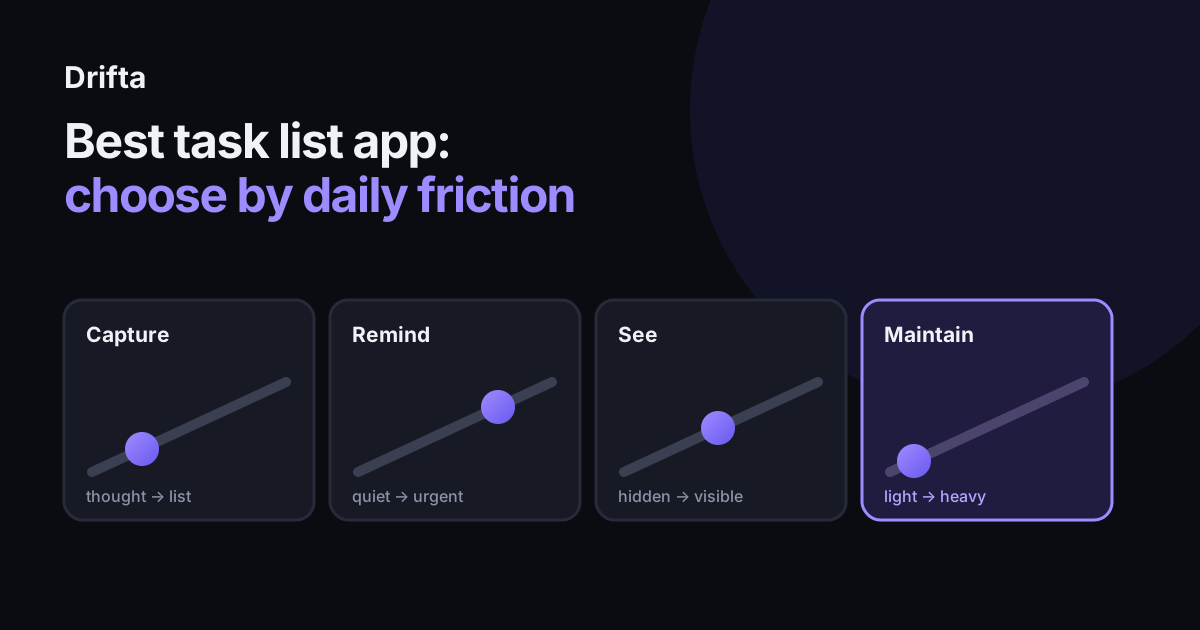
The best task list app is the one that removes your most common daily friction: slow capture, easy-to-miss reminders, an out-of-sight list, or too much upkeep. Test those four criteria with your own tasks before comparing extra features. A fast inbox suits ideas on the move, flexible reminder windows suit tasks with a range, a useful widget suits people who forget to open the app, and low upkeep suits anyone who abandons elaborate systems.
The best task list app is the one that removes your most common daily friction: slow capture, easy-to-miss reminders, an out-of-sight list, or too much upkeep. Test those four criteria with your own tasks before comparing extra features. The winning app should make the broken part of your current system easier without adding a new maintenance job.
Which criterion should decide your task list app?
The deciding criterion should be the first place your current task list fails during an ordinary day. Someone who remembers every task but ignores alerts needs a different app from someone who loses a thought before opening the capture screen. Pick one primary friction from the table, then treat the other three as minimum requirements rather than equal priorities.
| Your recurring situation | Criterion to prioritize | A useful test |
|---|---|---|
| Tasks vanish before you write them down | Capture speed | Add five tasks in the places you usually remember them |
| You see alerts, dismiss them, and forget | Reminder style | Miss one alert on purpose and watch what happens next |
| You forget the list exists | Widget support | Use only the Home or Lock Screen for one morning |
| You quit after the list gets messy | Upkeep cost | Measure Friday cleanup in minutes |
This order keeps the decision tied to behavior. The broader guide on choosing a task app for ADHD asks eight product questions; this guide narrows the choice to the one daily friction that deserves the most weight.
How fast should task capture feel?
Task capture should feel immediate enough that writing the task down is easier than promising yourself you will remember it. Jakob Nielsen's usability guidance at Nielsen Norman Group names three response-time limits: 0.1 second feels instantaneous, one second preserves a user's train of thought, and ten seconds is about the limit for keeping attention on the interaction. His phrase is that one second keeps a user's “flow of thought” uninterrupted.
Those limits describe system response, while capture also includes your taps and decisions. Time the whole interaction. Start a stopwatch, add five real tasks, and include at least one with a date or time. In one sample test, plain capture took 9 seconds. Adding a deadline took 16 seconds; adding a start and a deadline took 23. The average was 16 seconds per task: (9 + 16 + 23) divided by 3.
At 18 captures a week, that example costs 4 minutes 48 seconds. A 40-second capture flow would cost 12 minutes for the same 18 tasks. The weekly difference is only 7 minutes 12 seconds, but the more revealing result is whether you delayed any entry because the slower form felt annoying. Count abandoned captures along with seconds.
Which reminder style fits which situation?
The right reminder style matches how much timing flexibility a task has and what should happen after the first alert. A dentist appointment belongs at one fixed time. Calling the dentist may fit anywhere between the office opening at 9 a.m. and closing at 5 p.m. A medication refill with consequences may deserve another prompt if the first one is missed.
Run three reminder tests: one fixed appointment, one flexible errand, and one task you often dismiss. Check whether the app offers a single alert, a repeated alert, or a window with an earliest start and a deadline. Drifta uses the third model, so the task can stay quiet before it is actionable and become visible during the range you chose. If you regularly swipe away a prompt without acting, why reminders get ignored explains how wording, timing, and the next action change the result.
When does widget support matter?
Widget support matters when opening the app is the step that keeps getting skipped. Apple says in its Human Interface Guidelines for widgets that widgets provide “quick access to essential information and focused interactions.” Apple also recommends timely, glanceable content instead of a widget that merely copies the app icon.
Judge a widget after one morning of use. Put it where your thumb or eyes already land. See if it shows a current task, a stale list, or nothing useful. A tap should complete the task or open the exact item; landing at the app's front door still leaves you to navigate. The useful widget removes that decision. A decorative one changes where the icon sits.
How much upkeep is too much for a task list?
Task-list upkeep is too high when organizing the system routinely takes longer than choosing and starting the next task. Include inbox sorting, labels, rescheduling, duplicate cleanup, and the weekly review. Those minutes are part of the app's cost even when the download is free.
Consider a system that needs 6 minutes of cleanup on each of five weekdays plus a 20-minute weekly review. That is 50 minutes a week, or 43 hours 20 minutes across 52 weeks. A lighter system needing 3 minutes on weekdays and a 10-minute review costs 25 minutes a week, or 21 hours 40 minutes a year. The second system gives back 21 hours 40 minutes without completing a single extra task.
Use those numbers as a measurement template. Your own seven-day total sets the meaningful limit. If a large portion comes from repeatedly choosing priorities, cut decisions out of the task list before moving every task into another app.
How do you make the final choice?
The final choice comes from a one-week trial scored against your primary friction. Keep the same five to ten active tasks in each candidate. Record capture time, missed reminders, useful widget glances, and maintenance minutes, then choose the app that improves the failure you named at the start.
Leave unused features out of the score. If capture was the problem, a faster capture flow can beat a richer calendar. If visibility was the problem, one good widget can outweigh ten sorting views. Low-capacity weeks offer the final check: the better product still shows a manageable next action. A separate low-energy task list can make that check easier to pass.
Common questions
What is the best task list app?
The best task list app is the one that fixes your main failure point without creating a larger maintenance job. Compare capture speed, reminder behavior, widget usefulness, and weekly upkeep with real tasks from your own week.
How fast should adding a task be?
A practical target is one short interaction you can finish while the thought is still present. Time five ordinary captures, including one with a date, and reject an app if you start postponing entry because the form feels like data entry.
Do task list widgets matter?
A widget matters when your list disappears from memory after you close the app. It should show useful current tasks at a glance or let you complete one directly, rather than acting as a large app icon.
How long should I test a task list app?
Use it through at least one normal week, including a late start or changed plan. A polished first hour cannot show how much rescheduling and cleanup the app will require by Friday.
This article shares practical organizing ideas. It is not medical advice. For diagnosis or treatment questions, talk with a qualified clinician.